Managing SAP BTP Cloud Foundry environments typically involves switching between the terminal and the SAP BTP cockpit. The Cloud Foundry Tools extension for Visual Studio Code bridges that gap — giving you a visual interface to manage targets, services, and applications without leaving your editor.
In this post, I’ll walk through how to set it up and make the most of it.
Prerequisites
Before installing the extension, make sure you have the following:
- ✅ Visual Studio Code (latest stable version recommended)
- ✅ Cloud Foundry CLI (
cf-cliv8.7.4 or later) - ✅ cf-cli targets plugin for managing multiple CF targets
- ✅ An active SAP BTP Trial or Enterprise account
Step 1: Install the Extension
Open the Extensions view in VS Code (⇧⌘X on macOS / Ctrl+Shift+X on Windows) and search for Cloud Foundry Tools. The extension is published by SAP OSS with the identifier sapos.vscode-cf-tools.
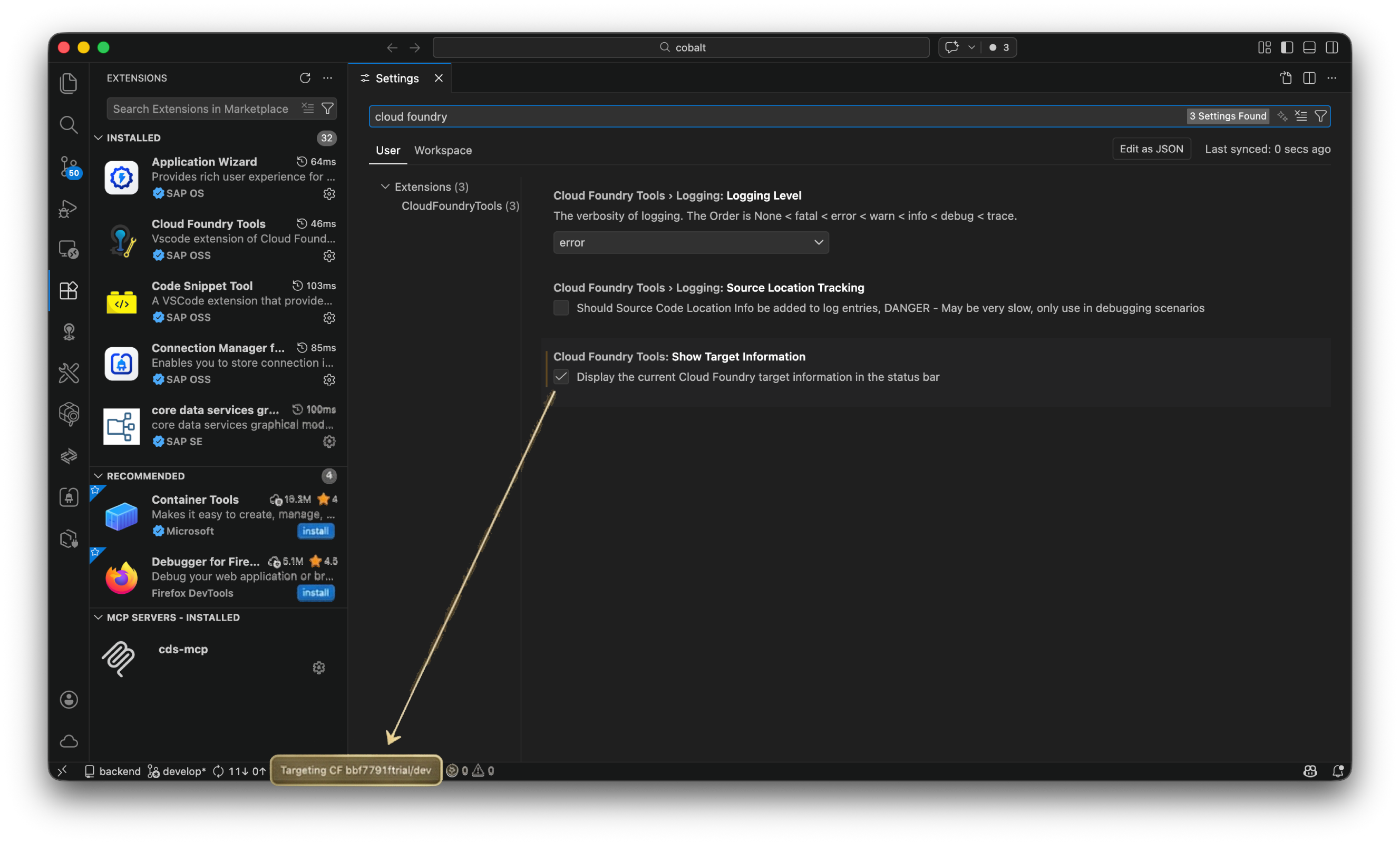
Click Install and reload VS Code when prompted. Once installed, you’ll notice a new icon in the Activity Bar and a status bar indicator showing your current CF target.
Key Features
The extension provides:
- Login to Cloud Foundry directly from VS Code
- Create, bind, and unbind services through a visual interface
- A dedicated View-Container titled Cloud Foundry in the sidebar
- Commands for common Cloud Foundry development and management tasks
Step 2: Configure Extension Settings
After installation, you can fine-tune the extension behavior through VS Code Settings. Open Settings (⌘, on macOS / Ctrl+, on Windows) and search for Cloud Foundry to see the available options.
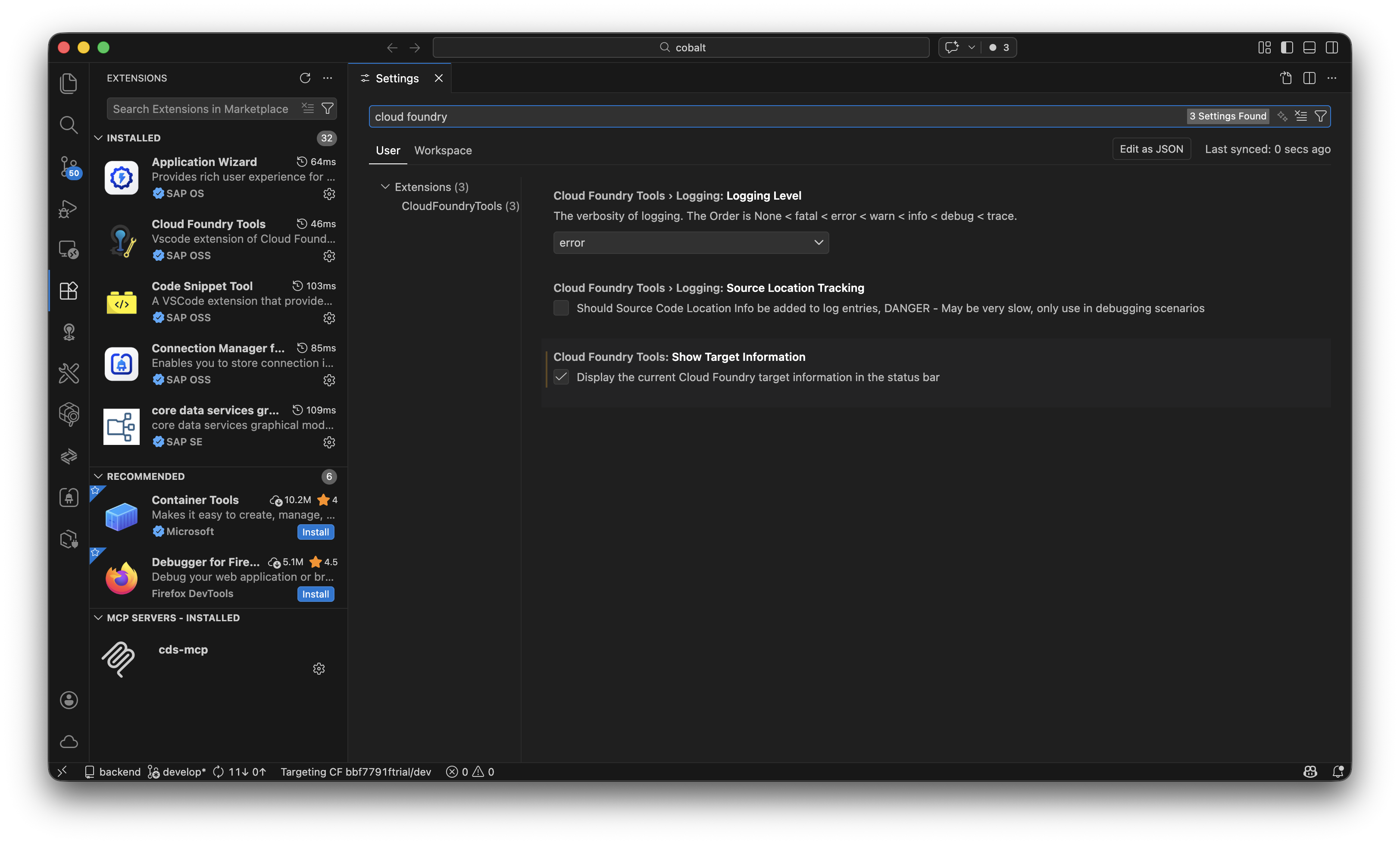
There are three configurable settings:
| Setting | Description | Default |
|---|---|---|
| Logging Level | Controls the verbosity of logs. Options: None, fatal, error, warn, info, debug, trace |
error |
| Source Location Tracking | Adds source code location info to log entries. ⚠️ May significantly slow down performance — use only for debugging | false |
| Show Target Information | Displays the current Cloud Foundry target in the VS Code status bar | true |
Tip: Keep the logging level at
errorfor everyday use. Switch todebugortraceonly when troubleshooting connection or authentication issues.
Step 3: Manage Cloud Foundry Targets
The most powerful feature of this extension is the Cloud Foundry: Targets view. It gives you a tree-based overview of all your configured Cloud Foundry environments, including their services and deployed applications.
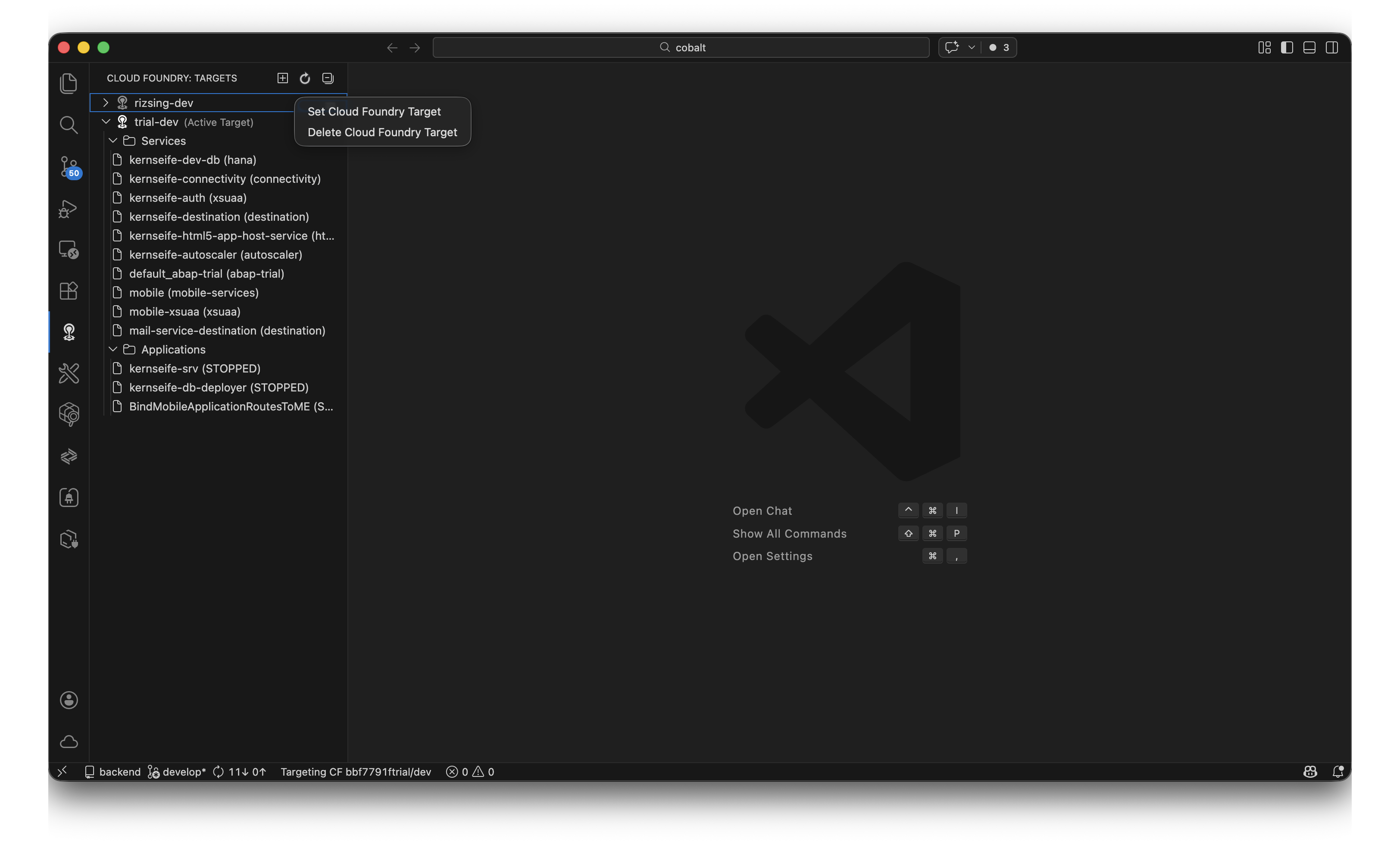
What You Can Do
From the Targets view, you can:
- Switch between CF targets — Right-click a target to set it as the active one
- Browse services — See all bound service instances (HANA, XSUAA, Connectivity, Destination, etc.) at a glance
- Monitor applications — Check the status of deployed apps (Running, Stopped, etc.)
- Manage targets — Add new targets or delete existing ones via the context menu
Working with Multiple Environments
If you work across multiple subaccounts or spaces (e.g., dev, staging, production), the Targets view lets you organize and switch between them effortlessly. The currently active target is indicated with a highlighted icon, and the status bar at the bottom of VS Code always shows which environment you’re connected to.
Useful Commands
Open the Command Palette (⇧⌘P / Ctrl+Shift+P) and type Cloud Foundry to explore the available commands:
| Command | Description |
|---|---|
CF: Login to Cloud Foundry |
Authenticate against a CF API endpoint |
CF: Set Org and Space |
Select your target organization and space |
CF: Create Service |
Provision a new service instance |
CF: Bind Service |
Bind a service to an application |
CF: Unbind Service |
Remove a service binding |
CF: Select a Target |
Switch your active CF target |
Summary
The Cloud Foundry Tools extension is a must-have for any SAP BTP developer working with Cloud Foundry. It eliminates the constant context-switching between the terminal, the cockpit, and your code — keeping you focused and productive inside VS Code.